
Event Report
The Event Report shows a summary of the guest information for your event campaign.
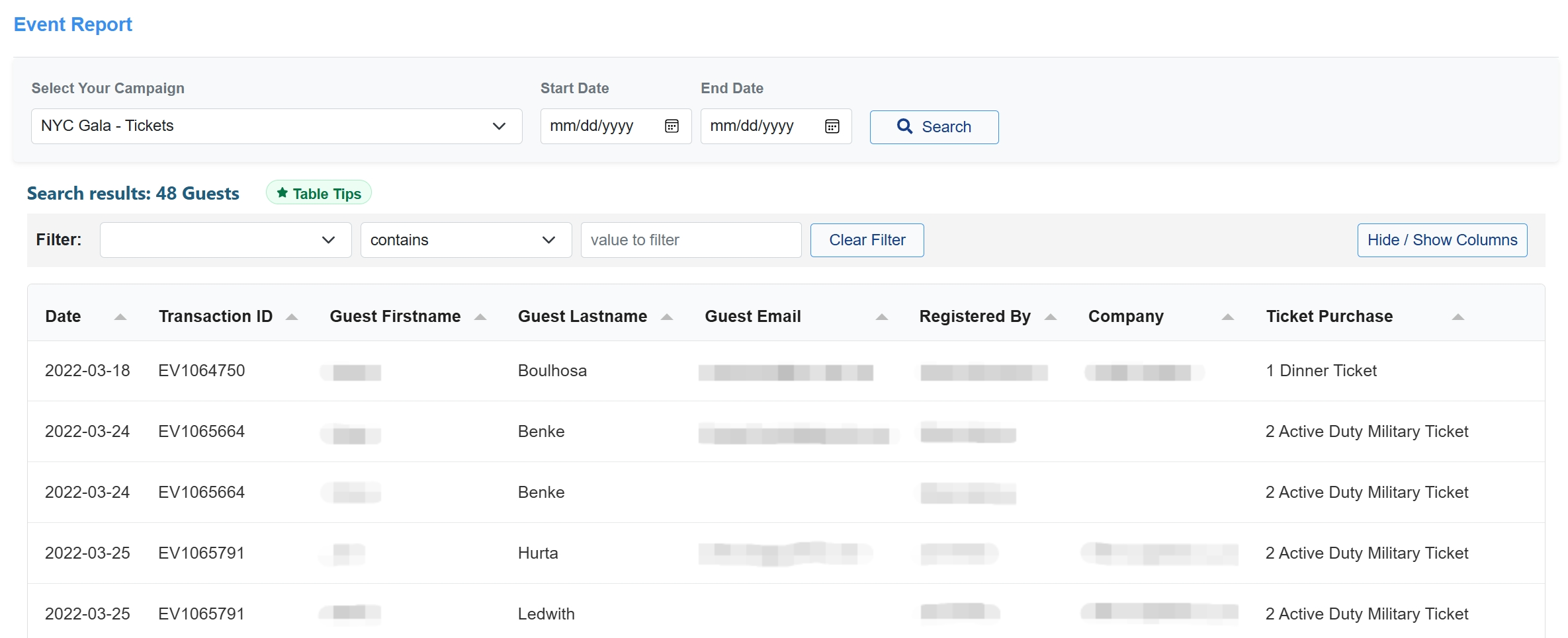
In the Event Report you can see the Transaction ID, guest first and last name, guest email, and the type of ticket they purchased. You are able to easily filter and search through the report as well as download the report.
How to generate an Event Report
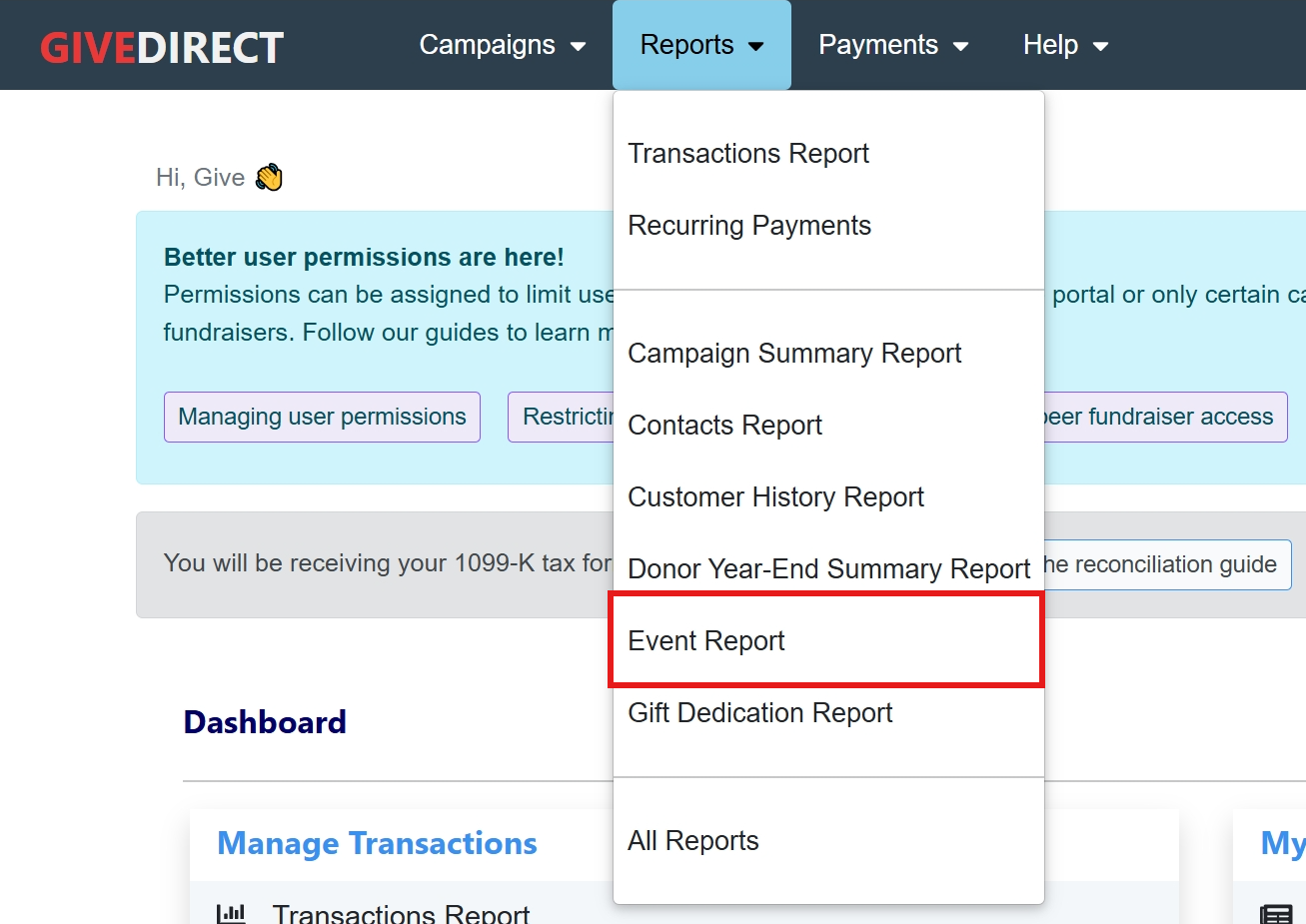
Navigate to the Event Report page by selecting "Event Report" from the reports dropdown menu.
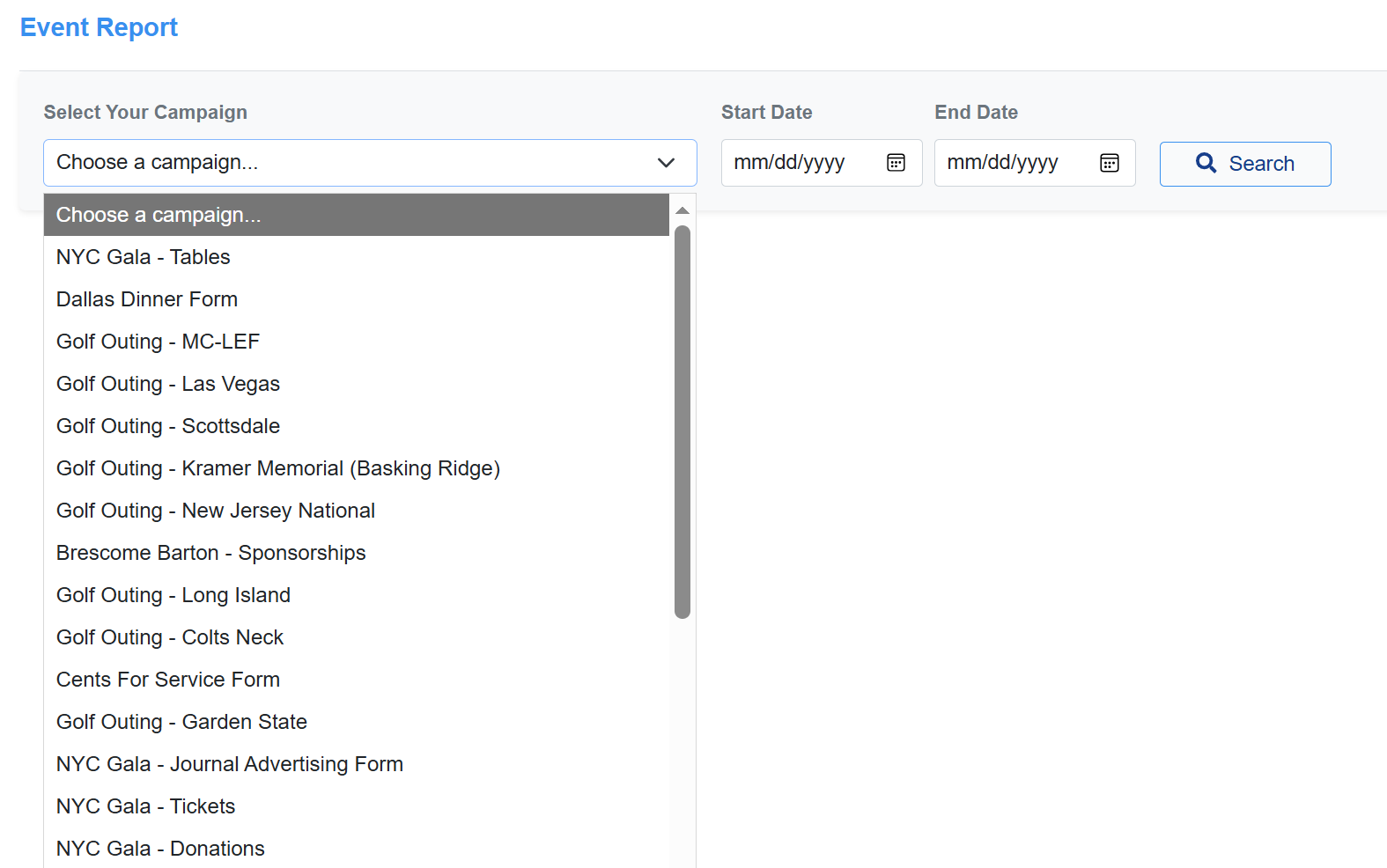
Then select the campaign you would like to view from the dropdown menu and click search.
The search will generate a report that looks something like this:
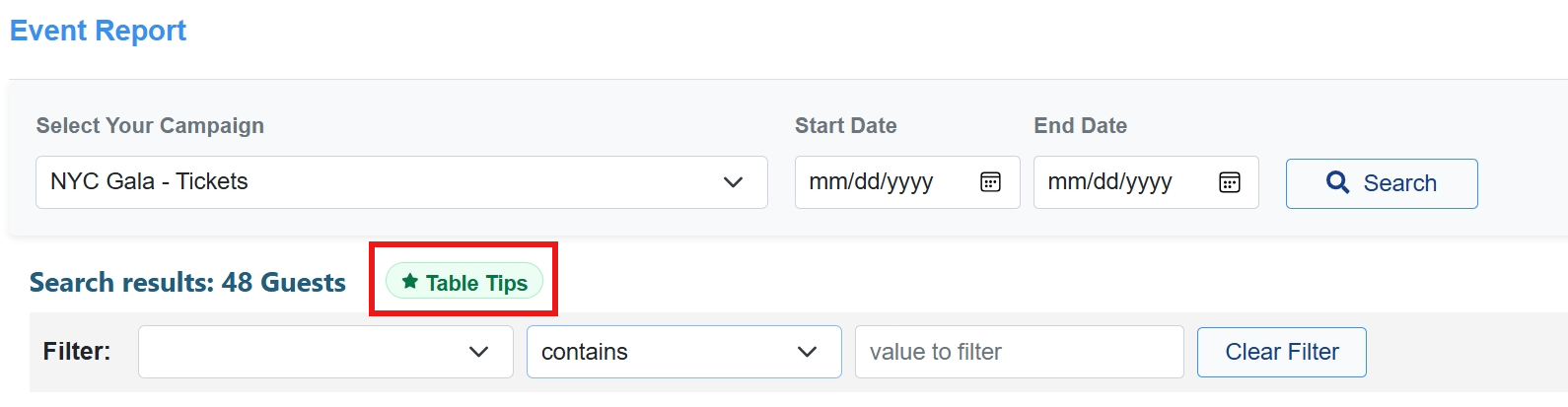
For a quick overview on filtering, sorting, and downloading your report, click on the green "Table Tips" button at the top.
Filtering and sorting your report
You can sort by any of the columns by clicking the triangle next to the section name. For example, if you wanted to sort by guest last name, just click the triangle next to the section "Guest Lastname".
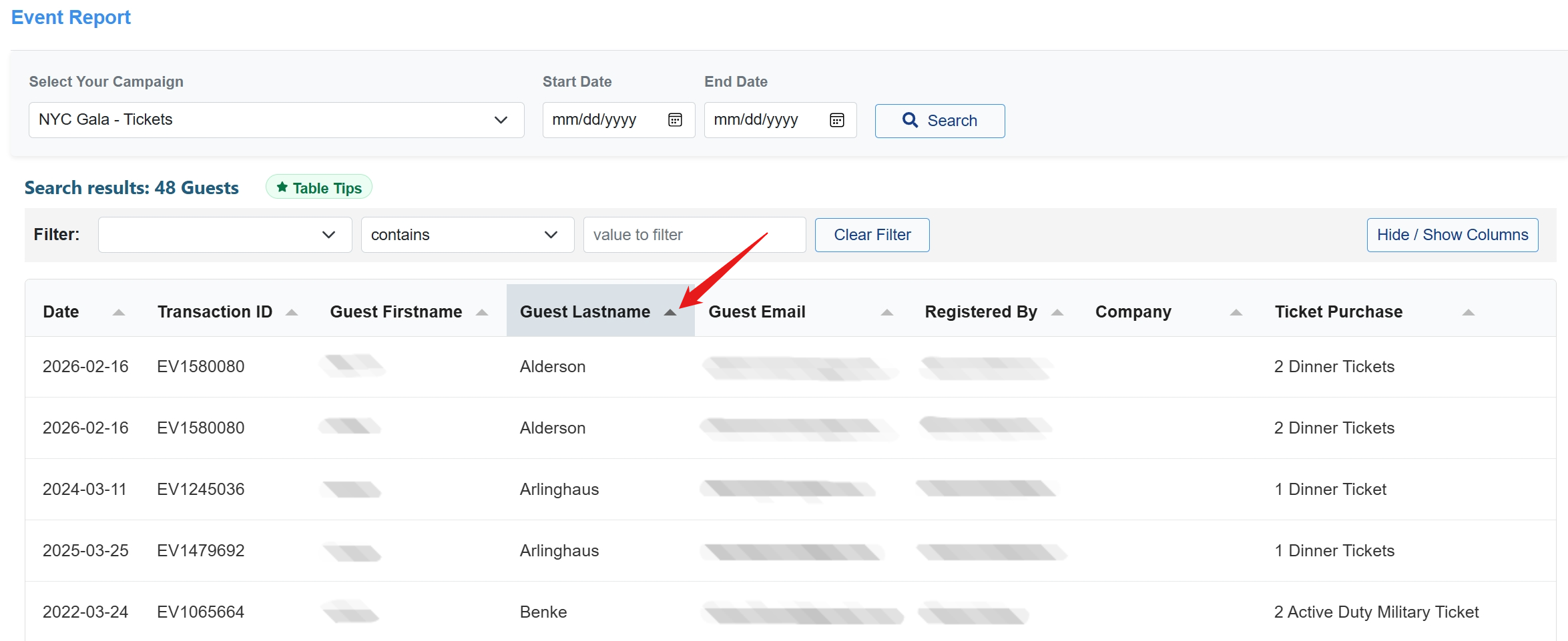
If you want to filter the report to show a more specific subset of guests, you can use the filter at the top of the report.
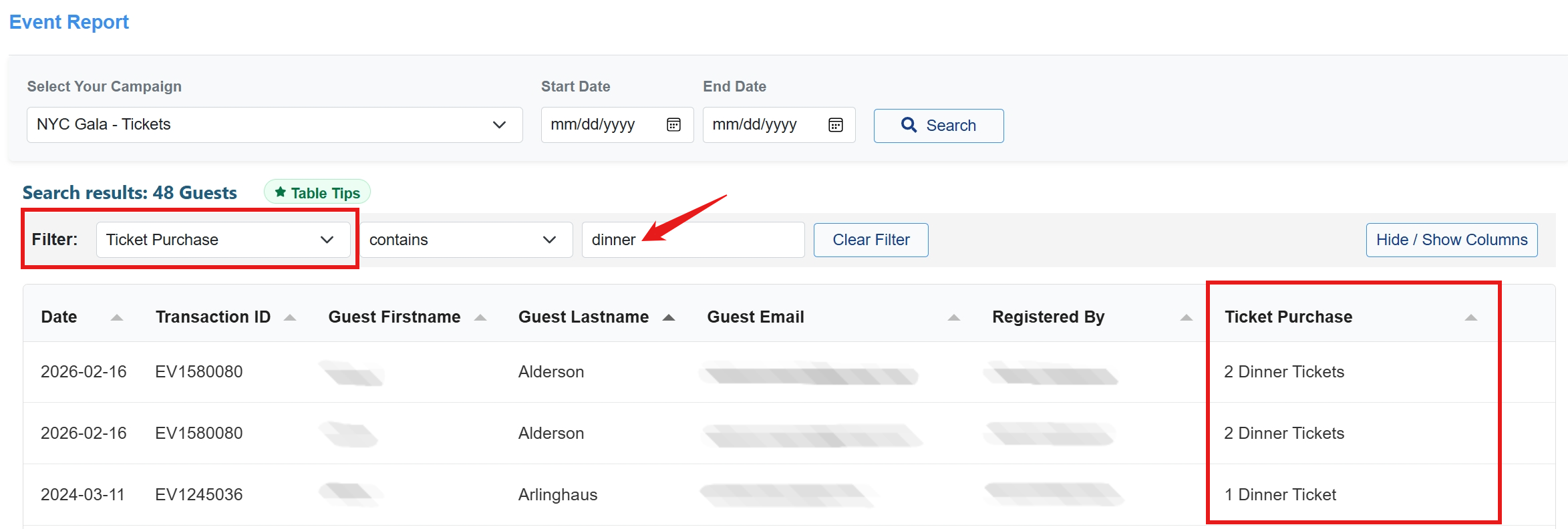
In this example, there are two types of tickets: Dinner Tickets, and Active Duty Military Tickets. If you wanted to only see the guests who purchased Dinner Tickets, you could filter by ticket purchase and set the value to "dinner".
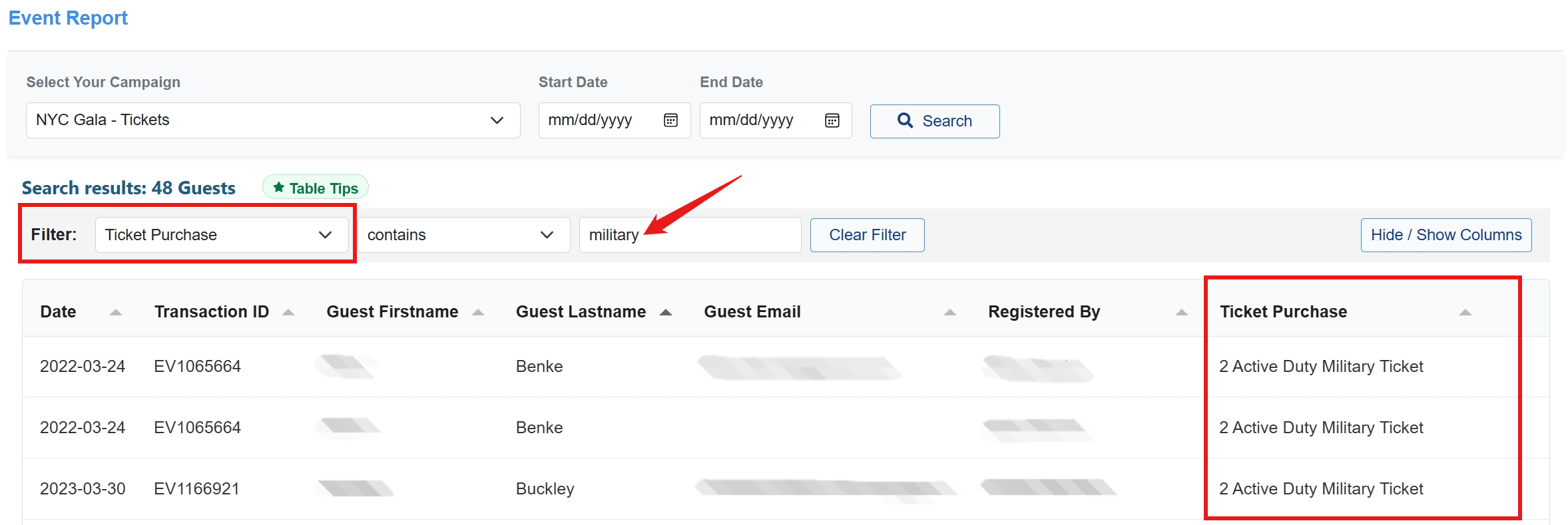
Conversely, if you wanted to only see guests who purchased an Active Duty Military Ticket, you can do the same filter but set the value to "military".
Hide and Show Columns
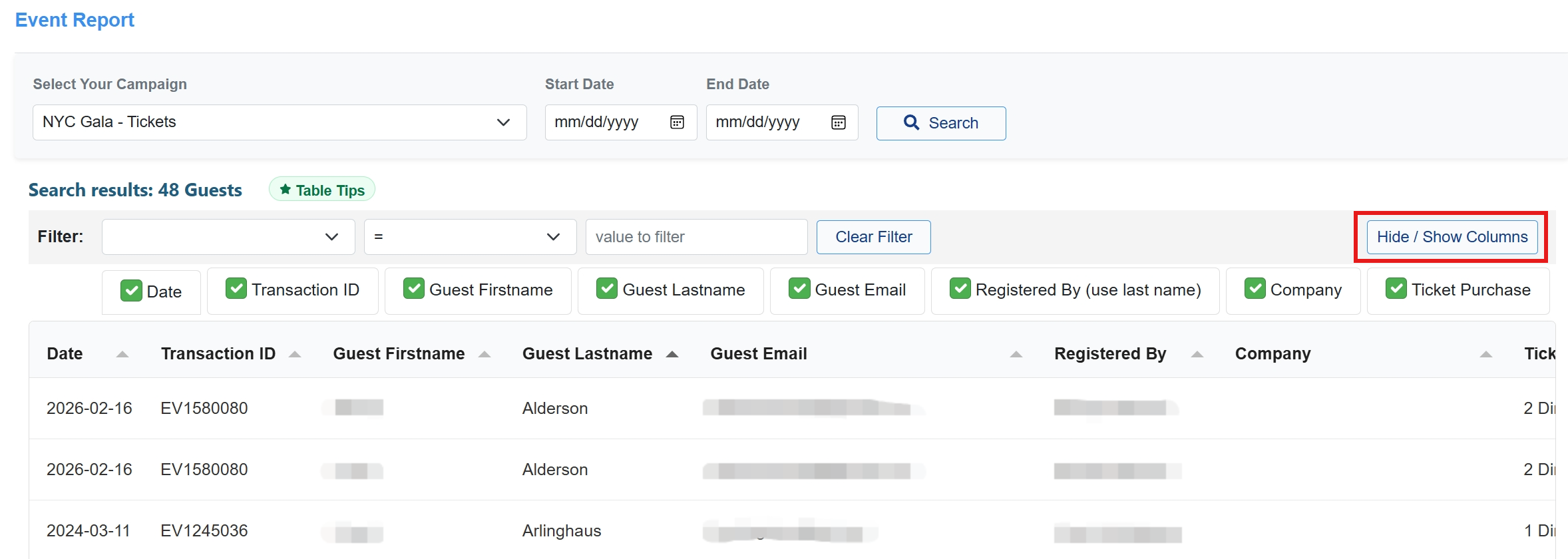
To make the information more manageable, you can show or hide any of the columns. To choose which columns to hide, click the "Hide / Show Columns" button and uncheck the columns you want to hide (all columns are shown by default).
Downloading your Event Report
To download your Event Report, click one of the export buttons at the bottom of the page. The report you've created on the screen will export in the same way, preserving all filters and sorting.
